








%20--%3e%3csvg%20version='1.1'%20id='Layer_1'%20xmlns='http://www.w3.org/2000/svg'%20xmlns:xlink='http://www.w3.org/1999/xlink'%20x='0px'%20y='0px'%20viewBox='0%200%2050%2050'%20style='enable-background:new%200%200%2050%2050;'%20xml:space='preserve'%3e%3cstyle%20type='text/css'%3e%20.st0{fill-rule:evenodd;clip-rule:evenodd;fill:%23333333;}%20%3c/style%3e%3cpath%20class='st0'%20d='M8,6.3c5.7,1,10.6-1.4,17-4.3c6.3,2.9,11.3,5.3,17,4.3c1.1-0.2,2.2,0.7,2.2,1.8v17.7c0,11.2-8.4,20.6-19.2,22.1%20C14.2,46.4,5.8,37.1,5.8,25.8V8.1C5.8,7,6.9,6.1,8,6.3L8,6.3z%20M25,6.1c-5,2.3-9.9,4.5-15.5,4.1v15.6c0,9,6.6,16.8,15.5,18.4%20c8.9-1.5,15.5-9.3,15.5-18.4V10.2C34.9,10.6,30,8.4,25,6.1z%20M24.2,18.9c0.6-0.1,1.2-0.1,1.8,0c1,0.3,1.8,0.9,2.2,1.9%20c0.4,1,1.6,1.5,2.6,1c1-0.4,1.5-1.6,1-2.6c-0.9-2.1-2.6-3.6-4.8-4.1v-0.7c0-1.1-0.9-1.9-1.9-1.9c-1.1,0-1.9,0.9-1.9,1.9v0.7%20c-1.5,0.4-2.8,1.2-3.8,2.4c-0.8,1.1-1.2,2.3-1.1,3.7c0.1,1.9,1,3.3,2.5,4.4c1.2,0.8,2.6,1.2,4,1.4c0.9,0.1,2,0.4,2.8,0.9%20c1,0.6,1.5,2,0.4,2.8c-0.6,0.4-1.4,0.7-2.1,0.8c-1.1,0.1-2.2,0-3.1-0.6c-0.6-0.4-1-0.9-1.2-1.6c-0.3-1-1.3-1.7-2.4-1.4%20c-1,0.3-1.7,1.3-1.4,2.4c0.4,1.6,1.4,3,2.8,3.9c0.8,0.5,1.7,0.9,2.6,1.1v0.7c0,1.1,0.9,1.9,1.9,1.9c1.1,0,1.9-0.9,1.9-1.9v-0.6%20c1.2-0.2,2.3-0.7,3.3-1.4c1.6-1.2,2.3-3,2.1-4.9c-0.2-1.9-1.2-3.4-2.9-4.3c-1.2-0.8-2.7-1.1-4.1-1.4c-1.2-0.2-3.2-0.6-3.3-2.1%20C22,19.8,23.1,19.1,24.2,18.9L24.2,18.9z%20M25.6,4.8L25,4.5l-0.6,0.3c-4.6,2.1-9.5,4.3-14.8,4L8.1,8.7v17.2c0,9.7,7.1,18.2,16.7,19.8%20l0.3,0l0.3,0c9.6-1.7,16.7-10.1,16.7-19.8V8.7l-1.6,0.1C35.1,9.1,30.3,6.9,25.6,4.8L25.6,4.8z'/%3e%3c/svg%3e)

'/%3e%3c/g%3e%3c/svg%3e)
%20--%3e%3csvg%20version='1.1'%20id='Layer_1'%20xmlns='http://www.w3.org/2000/svg'%20xmlns:xlink='http://www.w3.org/1999/xlink'%20x='0px'%20y='0px'%20viewBox='0%200%2025%2025'%20style='enable-background:new%200%200%2025%2025;'%20xml:space='preserve'%3e%3cstyle%20type='text/css'%3e%20.st0{fill:%23333333;}%20%3c/style%3e%3cg%3e%3cg%3e%3cpath%20class='st0'%20d='M21.6,12.5c-0.1,0.5-0.6,0.9-1.2,1c-0.2,0-0.3,0.1-0.4,0.3c0,0.2,0.1,0.4,0.2,0.4c0.5,0.2,0.8,0.8,0.7,1.3%20l-0.1,0.5c-0.1,0.7-0.9,1.1-1.5,0.9c-0.2,0-0.4-0.1-0.6-0.1c-0.3-0.1-0.5-0.1-0.8-0.2c-0.4-0.1-0.7-0.1-1.1-0.2%20c-0.4-0.1-0.9-0.2-1.3-0.3c-0.5-0.1-1-0.2-1.4-0.3c-0.5-0.1-1-0.2-1.5-0.3c-0.5-0.1-1.1-0.2-1.6-0.3c-0.5-0.1-1-0.2-1.6-0.3%20L8,14.7c-0.5-0.1-0.9-0.2-1.4-0.3c-0.4-0.1-0.8-0.2-1.2-0.2c-0.3-0.1-0.6-0.1-0.9-0.2l-0.7-0.1c-0.1,0-0.2,0-0.3-0.1c0,0,0,0,0,0%20c0.1,0.3,0,0.5-0.1,0.8c-0.2,0.5-0.8,0.8-1.4,0.7c-0.2,0-0.3,0-0.4,0.2L1.4,16c-0.1,0.2,0,0.3,0.1,0.4c0,0,17.6,8.1,17.7,8.2%20c0.2,0,0.3,0,0.4-0.2l0.2-0.5c0.1-0.2,0-0.3-0.1-0.4c-0.4-0.3-0.6-1-0.4-1.5c0.2-0.5,0.8-0.8,1.4-0.7c0.2,0,0.3,0,0.4-0.2l0.2-0.5%20c0.1-0.2,0-0.3-0.1-0.4c-0.4-0.3-0.6-1-0.4-1.5c0.2-0.5,0.8-0.8,1.4-0.7c0.2,0,0.3,0,0.4-0.2l0.2-0.5c0.1-0.2,0-0.3-0.1-0.4%20c-0.4-0.3-0.6-1-0.4-1.5c0.2-0.5,0.8-0.8,1.4-0.7c0.2,0,0.3,0,0.4-0.2l0.2-0.5c0.1-0.2,0-0.3-0.1-0.4l-2.6-1.2L21.6,12.5z%20M21.6,12.5'/%3e%3cpath%20class='st0'%20d='M0.6,12.3c0,0,19.1,3.8,19.1,3.8c0.2,0,0.3-0.1,0.4-0.3l0.1-0.5c0-0.2-0.1-0.3-0.2-0.4%20c-0.5-0.2-0.8-0.8-0.7-1.4c0.1-0.6,0.6-1,1.2-1c0.2,0,0.3-0.1,0.4-0.3l0.1-0.4l0-0.1c0-0.2-0.1-0.3-0.2-0.4%20c-0.5-0.2-0.8-0.8-0.7-1.4c0.1-0.6,0.6-1,1.2-1c0.2,0,0.3-0.1,0.4-0.3l0.1-0.5c0-0.2-0.1-0.3-0.2-0.4c-0.5-0.2-0.8-0.8-0.7-1.4%20c0.1-0.6,0.6-1,1.2-1c0.2,0,0.3-0.1,0.4-0.3l0.1-0.6c0-0.2-0.1-0.3-0.2-0.4C22.1,4.3,3,0.5,3,0.5c-0.1,0-0.3,0.1-0.3,0.2L2.6,1.3%20c0,0.2,0.1,0.3,0.2,0.4C3.3,1.9,3.6,2.5,3.5,3C3.4,3.6,2.9,4,2.3,4C2.1,4,2,4.2,2,4.3L1.8,4.8c0,0.2,0.1,0.3,0.2,0.4%20C2.6,5.5,2.9,6,2.8,6.6c-0.1,0.6-0.6,1-1.2,1c-0.2,0-0.3,0.1-0.4,0.3L1.1,8.4c0,0.2,0.1,0.3,0.2,0.4C1.9,9,2.2,9.6,2.1,10.2%20c-0.1,0.6-0.6,1-1.2,1c-0.2,0-0.3,0.1-0.4,0.3l-0.1,0.5C0.4,12.1,0.5,12.3,0.6,12.3L0.6,12.3z%20M16.9,6.1c0.1-0.3,0.4-0.5,0.7-0.5%20s0.5,0.4,0.5,0.7l-0.8,4l-0.5,2.5c-0.1,0.3-0.3,0.5-0.6,0.5c0,0-0.1,0-0.1,0c-0.3-0.1-0.5-0.4-0.5-0.7l0.6-2.8L16.9,6.1z%20M5.9,3.9%20C6,3.5,6.3,3.3,6.6,3.4C7,3.4,7.2,3.8,7.1,4.1L6.8,5.5L6.5,7.1L6.3,8.3l-0.5,2.3c-0.1,0.3-0.3,0.5-0.6,0.5c0,0-0.1,0-0.1,0%20c0,0,0,0,0,0c-0.3-0.1-0.5-0.4-0.4-0.7l0.1-0.5l0.2-1.2L5.9,3.9z%20M5.9,3.9'/%3e%3c/g%3e%3c/g%3e%3c/svg%3e)
%20--%3e%3csvg%20version='1.1'%20id='Layer_1'%20xmlns='http://www.w3.org/2000/svg'%20xmlns:xlink='http://www.w3.org/1999/xlink'%20x='0px'%20y='0px'%20viewBox='0%200%2025%2025'%20style='enable-background:new%200%200%2025%2025;'%20xml:space='preserve'%3e%3cstyle%20type='text/css'%3e%20.st0{fill:%23333333;}%20%3c/style%3e%3cg%3e%3ccircle%20class='st0'%20cx='12.5'%20cy='3.7'%20r='2.9'/%3e%3cpath%20class='st0'%20d='M14.8,8.1H14c-0.2,0-0.4,0.1-0.5,0.2l-0.9,0.9l-0.9-0.9c-0.1-0.1-0.3-0.2-0.5-0.2h-0.8c-0.8,0-1.4,0.6-1.5,1.3%20l-0.7,5.2c0,0.2,0,0.4,0.2,0.6c0.1,0.2,0.3,0.2,0.6,0.2h0.8l0.6,7.5c0.1,0.8,0.7,1.3,1.5,1.3h1.6c0.8,0,1.4-0.6,1.5-1.3l0.6-7.5%20h0.8c0.2,0,0.4-0.1,0.6-0.2c0.1-0.2,0.2-0.4,0.2-0.6l-0.7-5.2C16.2,8.7,15.5,8.1,14.8,8.1z'/%3e%3ccircle%20class='st0'%20cx='19.8'%20cy='3.7'%20r='2.9'/%3e%3cpath%20class='st0'%20d='M5.2,0.8c-1.6,0-2.9,1.3-2.9,2.9s1.3,2.9,2.9,2.9c1.6,0,2.9-1.3,2.9-2.9l0,0l0,0C8.1,2.1,6.8,0.8,5.2,0.8z'/%3e%3cpath%20class='st0'%20d='M23.6,9.4c-0.1-0.8-0.7-1.3-1.5-1.3h-0.8c-0.2,0-0.4,0.1-0.5,0.2l-0.9,0.9l-0.9-0.9c-0.1-0.1-0.3-0.2-0.5-0.2%20h-0.8c-0.1,0-0.2,0-0.3,0c0.2,0.3,0.3,0.7,0.4,1.1l0.7,5.2c0.1,0.6-0.1,1.3-0.5,1.7c-0.2,0.2-0.5,0.4-0.7,0.5l0.5,4.8%20c0.1,0.8,0.7,1.3,1.5,1.3h1.6c0.8,0,1.4-0.6,1.5-1.3l0.6-6h0.8c0.2,0,0.4-0.1,0.6-0.2c0.1-0.2,0.2-0.4,0.2-0.6L23.6,9.4z'/%3e%3cpath%20class='st0'%20d='M6.6,14.4l0.7-5.2c0-0.4,0.2-0.7,0.4-1.1c-0.1,0-0.2,0-0.2,0H6.6c-0.2,0-0.4,0.1-0.5,0.2L5.2,9.3L4.2,8.3%20C4.1,8.2,3.9,8.1,3.7,8.1H2.9c-0.8,0-1.4,0.6-1.5,1.3l-0.7,5.2c0,0.2,0,0.4,0.2,0.6c0.1,0.2,0.3,0.2,0.6,0.2h0.8l0.6,6%20c0.1,0.8,0.7,1.3,1.5,1.3H6c0.8,0,1.4-0.6,1.5-1.3l0.5-4.8c-0.3-0.1-0.5-0.3-0.7-0.5C6.8,15.7,6.6,15.1,6.6,14.4z'/%3e%3c/g%3e%3c/svg%3e)



Menus
- Log In
- How to Reset Your Password
- How To Search Flight and Book
- How To Get the Ticket Issued
- How To Check My Booking Details and Status Information
- How To Change Date of Flight
- How To Add Booking Fees
- How to Change Password
- How to Update Your Profile
- How to Change Website Language
1. Log In
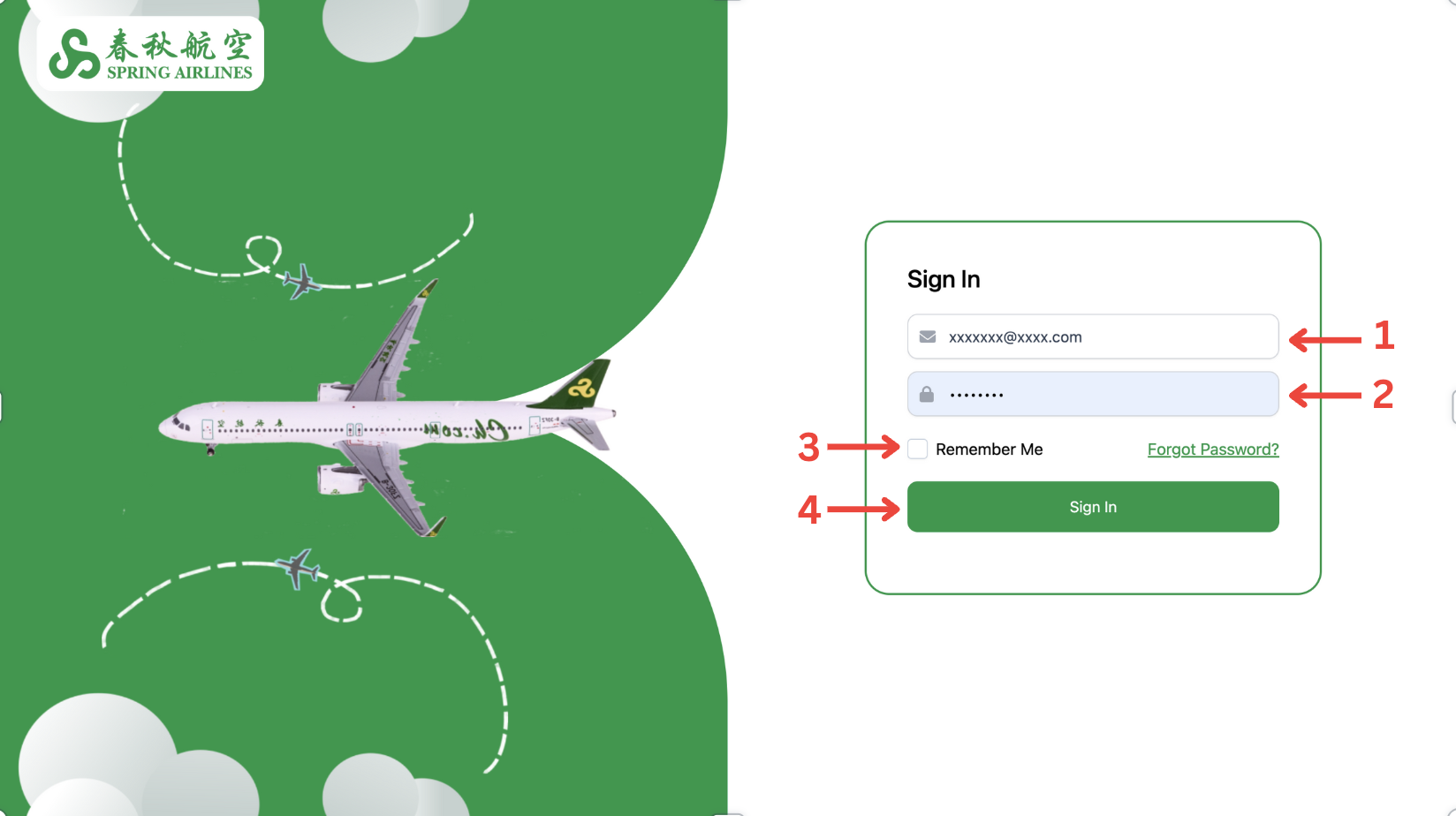
1 . Email: Enter the corresponding email address.
2 . Password: Enter the corresponding password.
3 . Remember Me: Check this box to stay signed in on the browser.
4 . Click “Sign In” to access.
5 . Note: Login credentials are provided via the registration email.
2. How to Reset Your Password
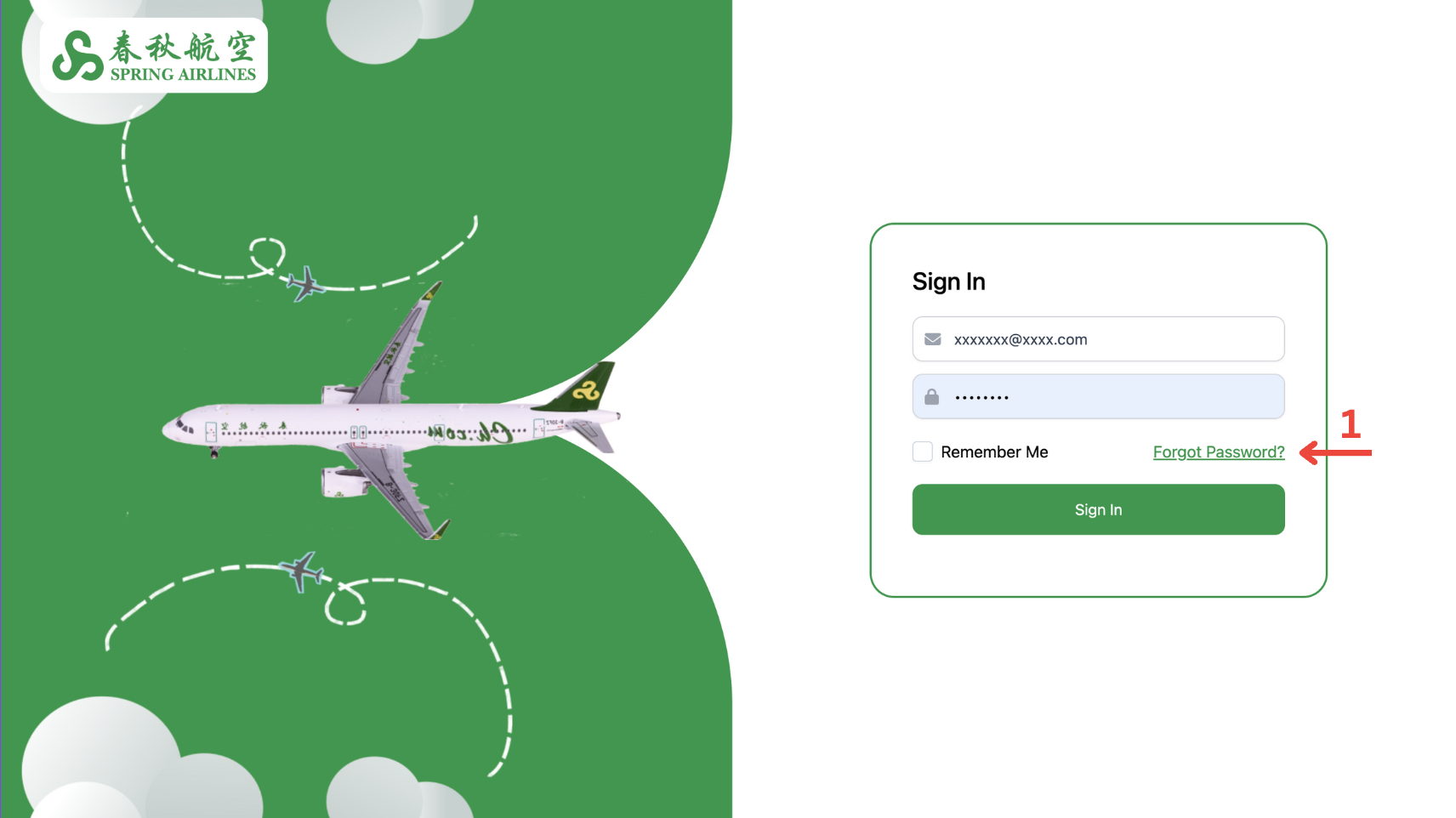
Step 1
1 . Access the Reset Option: Click 'Forgot Password' to reset your password.
3. How To Search Flight and Book
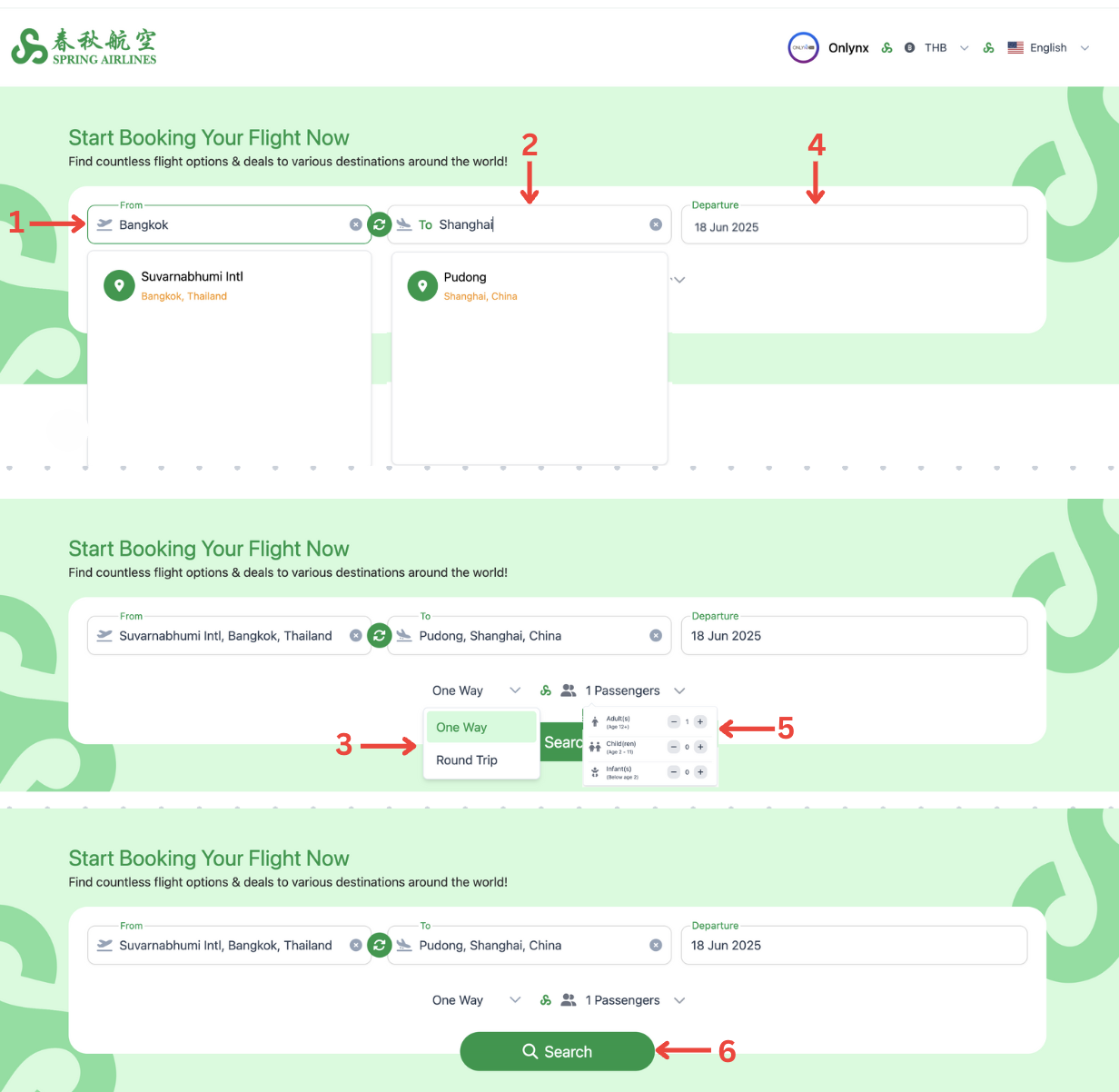
Flight Search: Step 1
1 . From: Enter the departure location by searching with the airport code, airport name, or city name.
2 . To: Enter the arrival location using the airport code, airport name, or city name.
3 . Trip Type: Select either One Way or Round Trip. (For this step, choose 'OneWay'.)
4 . Departure Date: Select the desired departure date from the calendar.
5 . Search: Click the Search button to view available flights.
4. How To Get the Ticket Issued
After completing your booking, the process of receiving your issued ticket will depend on the payment method selected during checkout. Please follow the instructions below based on your chosen payment option.
Book with Pay Later
1 . If you selected the Pay Later option, you will receive an email with your booking details and payment instructions. To proceed, complete the payment using the information provided in the email. Once the payment is made, contact Miramar to confirm your transaction. After the payment is verified, your ticket will be officially issued and sent to your email.
5. How To Check My Booking Details and Status Information
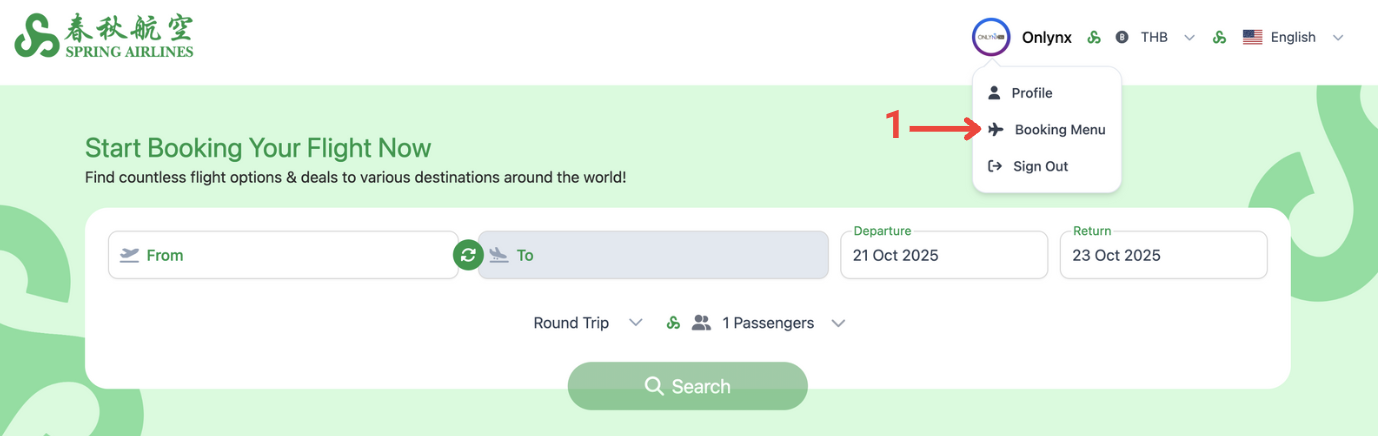
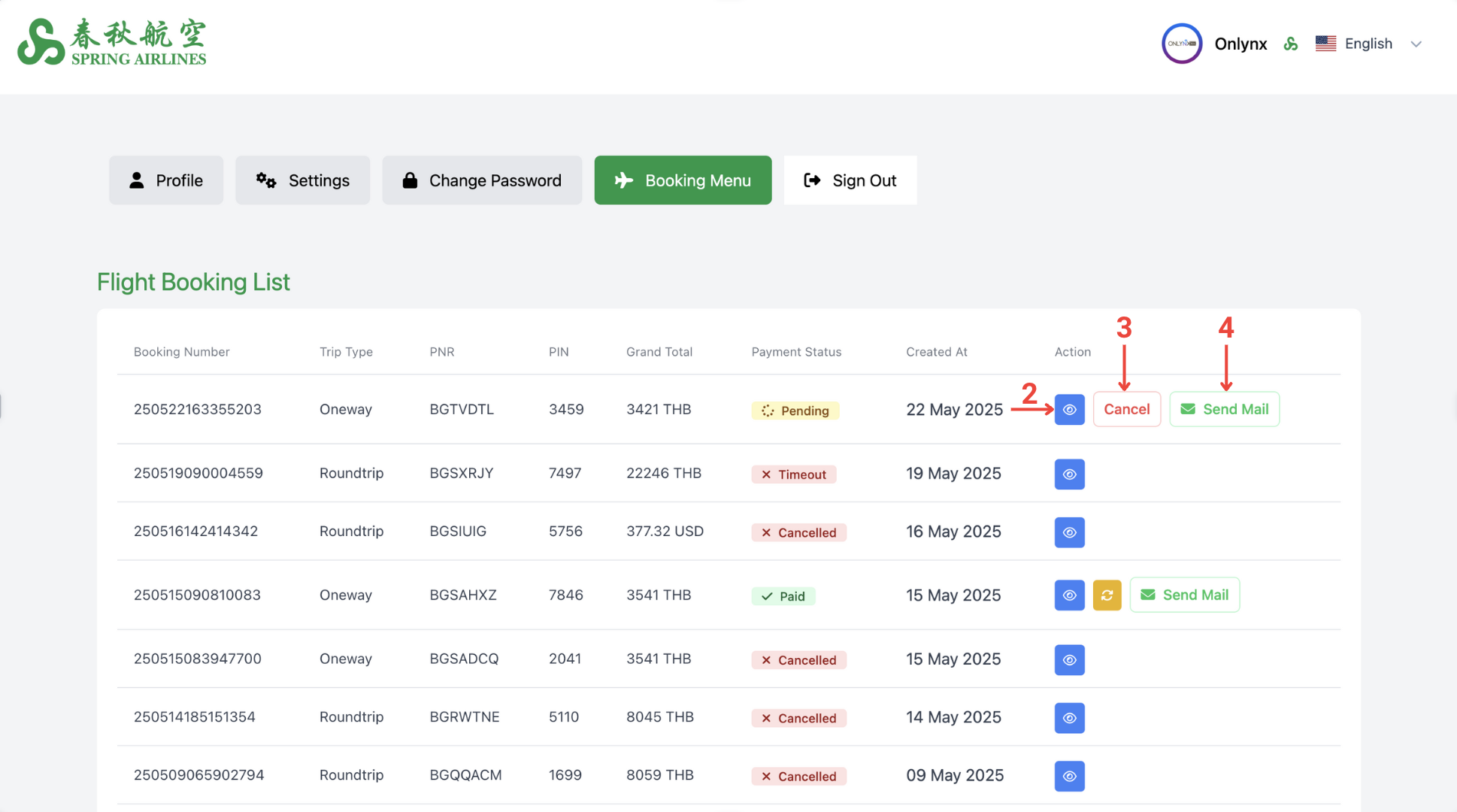
Where to Find Your Booking Details
1 . Booking Menu : To view your booking details and track the status of your reservation, go to the top right corner of the page and click on your Profile. From the dropdown menu, select the Booking Menu option.
2 . Booking Details: By clicking the (Eyes Icon - Booking Detail) icon, you can see a full overview of your booking, including flight and passenger information.
3 . Cancel : If you wish to cancel your booking, click on the Cancel button. Please note that cancellation policies may apply depending on the fare rules. Once cancelled, the booking status will update accordingly and cannot be reversed.
4 . Click the Send Mail Button: On the Booking page, locate and click the Send Mail button next to the relevant booking. This button is available only if the Payment Status is not marked as cancelled, timed out, or failed.
6. How To Change Date of Flight
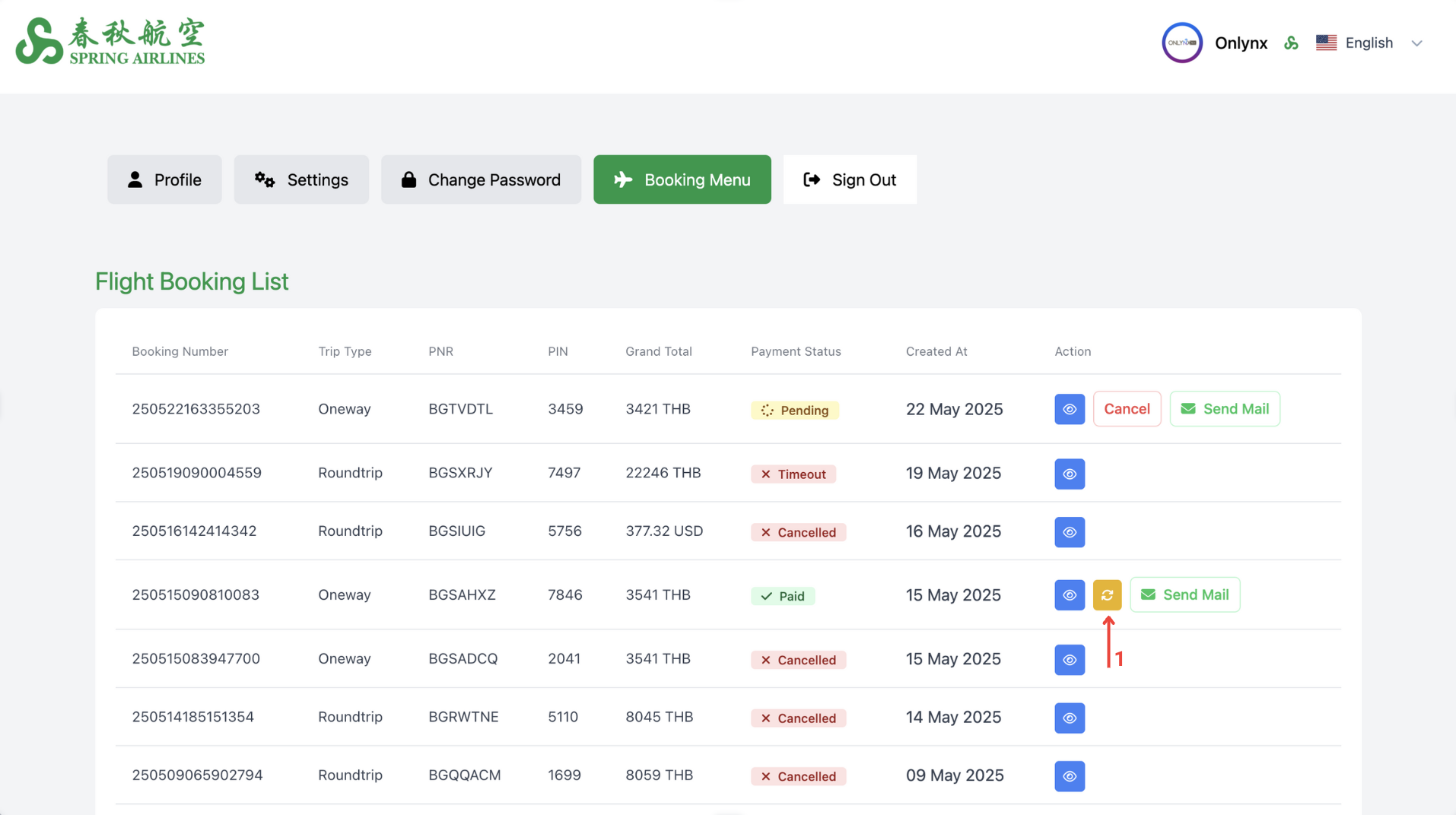
Change Date - Step 1
1 . Date Change Icon : Click the Date Change icon on the Booking page to start the process of changing the date for either your departure or return flight.
7. How To Add Booking Fees
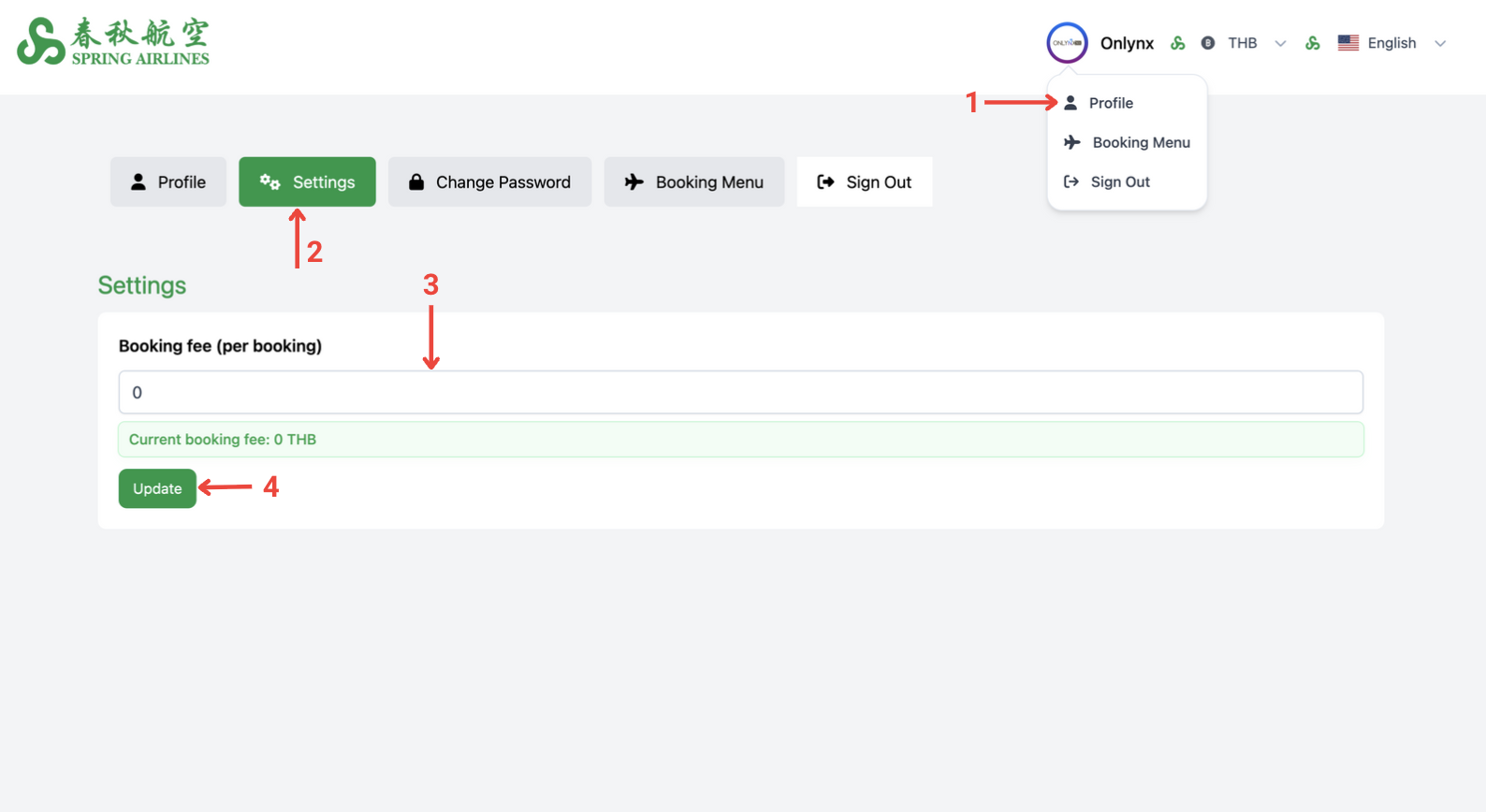
Open Your Profile - Step 1
1 . Click on your Profile icon at the top right corner of the page. From the dropdown menu, select Profile to access your account settings.
8. How to Change Password
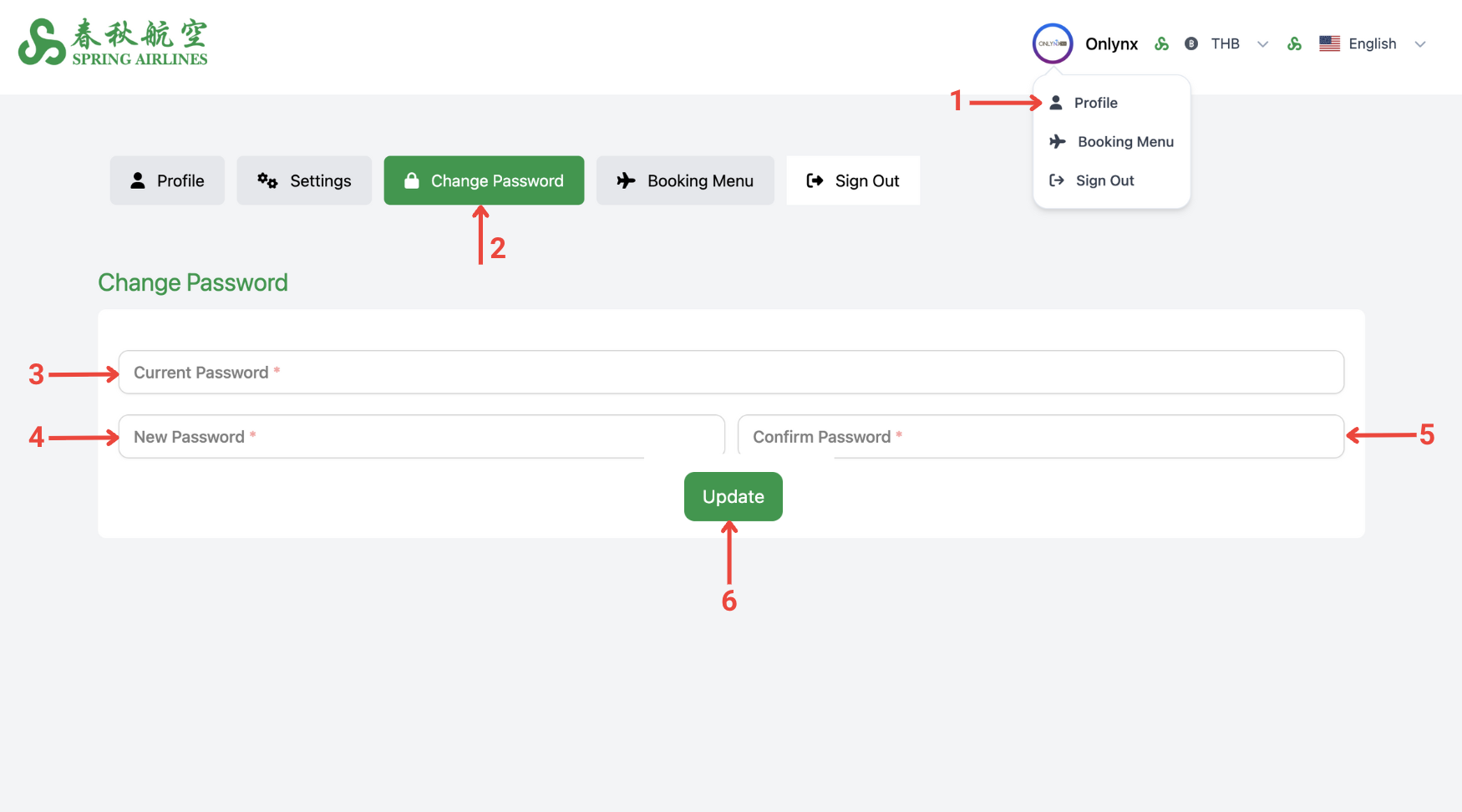
Open Your Profile - Step 1
1 . Click on your Profile icon at the top right corner of the page. From the dropdown menu, select Profile to access your account settings.
2 . Click Edit Profile.
9. How to Update Your Profile
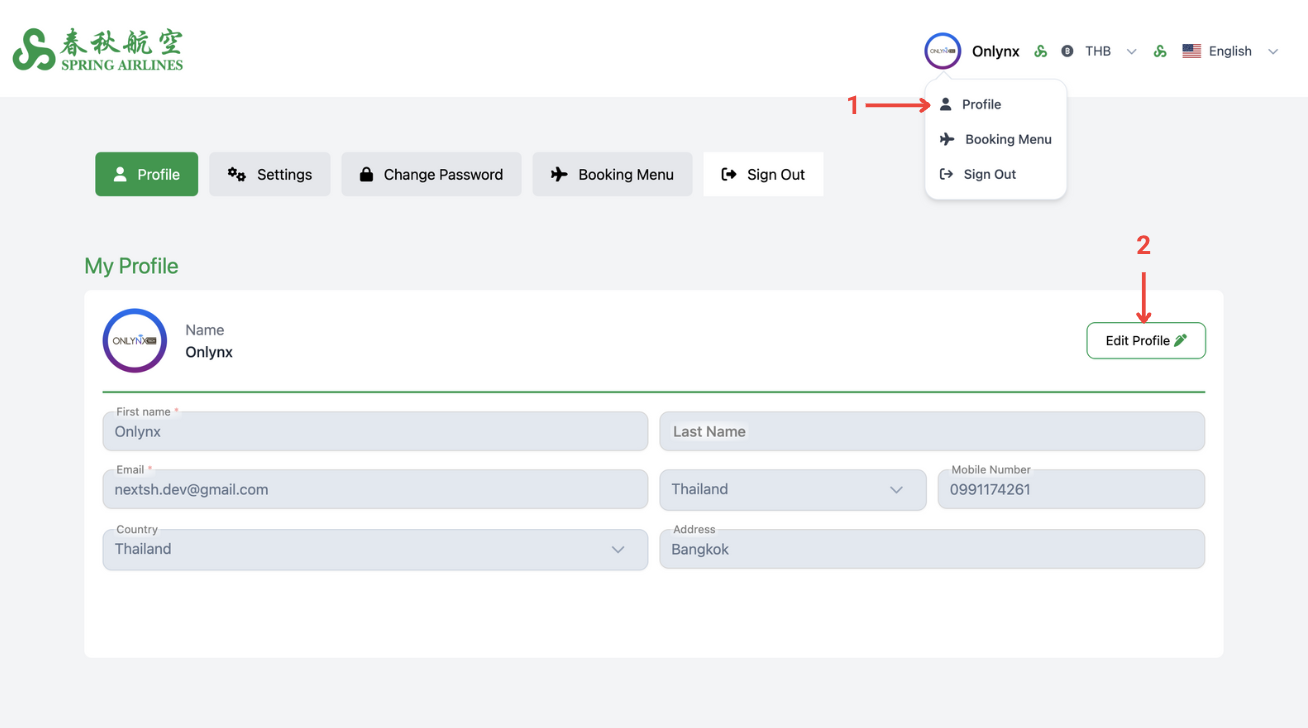
Open Your Profile - Step 1
1 . Click on your Profile icon at the top right corner of the page. From the dropdown menu, select Profile to access your account settings.
2 . Click Edit Profile: On the Profile page, click the Edit Profile button to begin updating your personal information.
10. How to Change Website Language
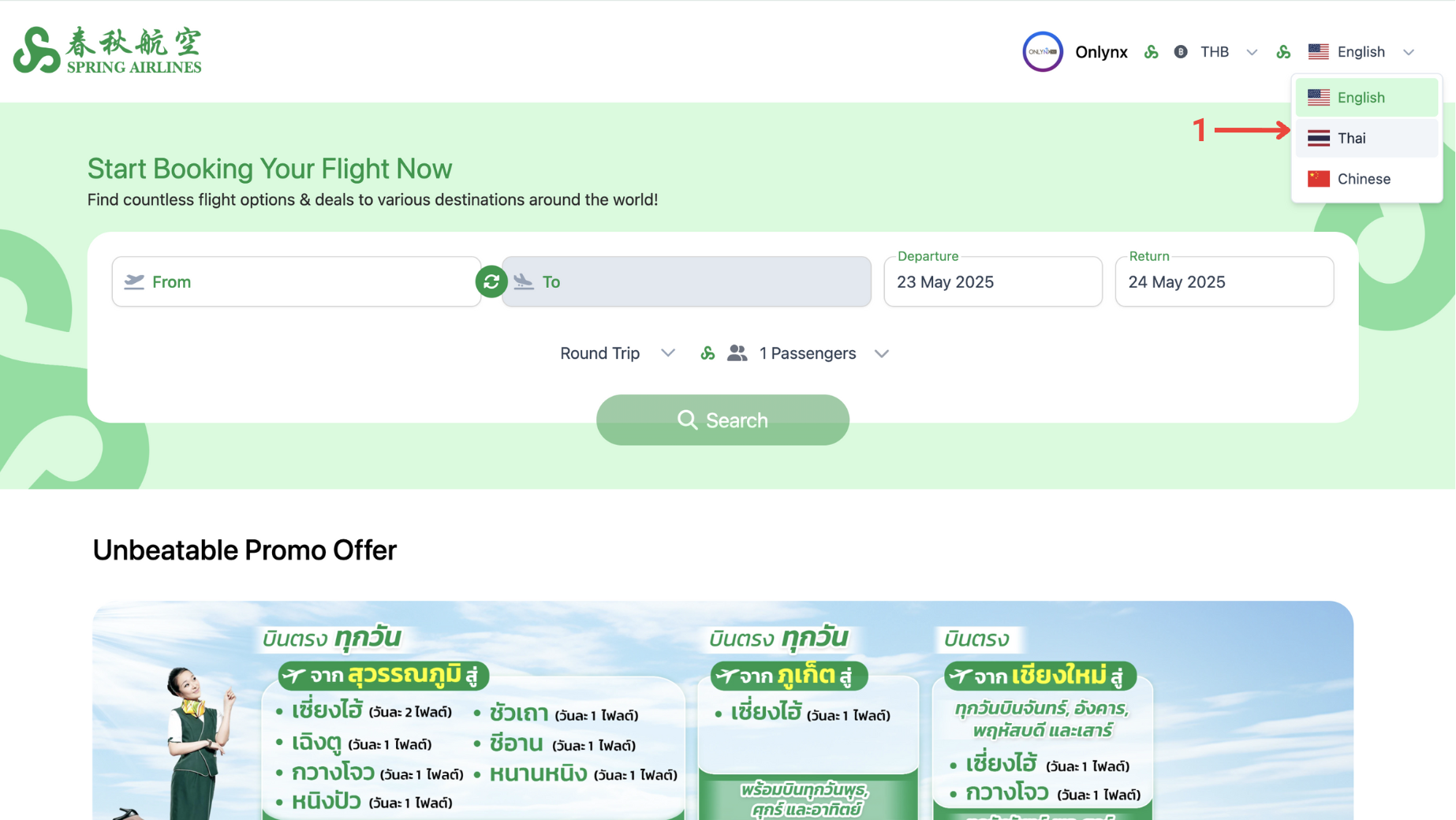
1 . To change your preferred language, click on the Menu icon at the top right corner of the page. From there, select your desired language. Currently, our system supports three languages: English and Thai